
| Polish |
|---|
TomcatInstalacjaNależy pobrać aktualną stabilną wersję serwera Tomcat 8.5 (stan na 03.2023) ze strony: |
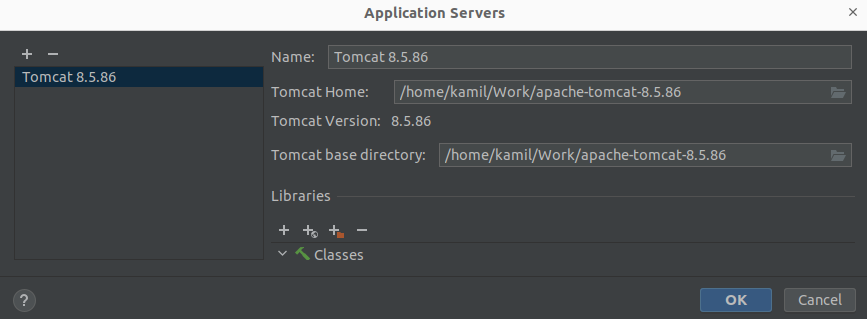
http://tomcat.apache.org/ w formacie archiwum .zip. Serwer rozpakowujemy w lokalizacji, gdzie chcemy trzymać nasz serwer. Dodanie serwera do IntellijDodajemy nową konfigurację Tomcat Servel Local. W Application serwer ustawiamy ścieżkę do folderu Tomcata.
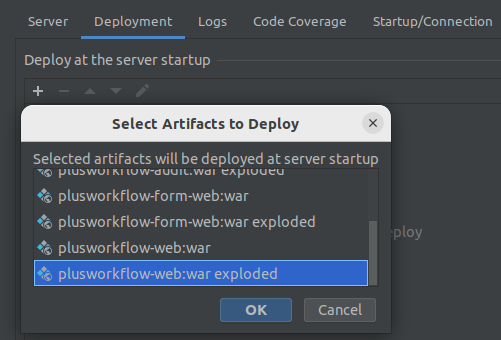
Przechodzimy do zakładki Deployment. Naciskamy plus i wybieramy plusworkflow-web:war exploded.
Na dole można zmienić Application context z 'plusworkflow_web_war_exploded' na cokolwiek chcemy (application context musi zawierać się w URL w zakładce serwer, np. URL: http://localhost:8080/PWFL, application context: /PWFL).
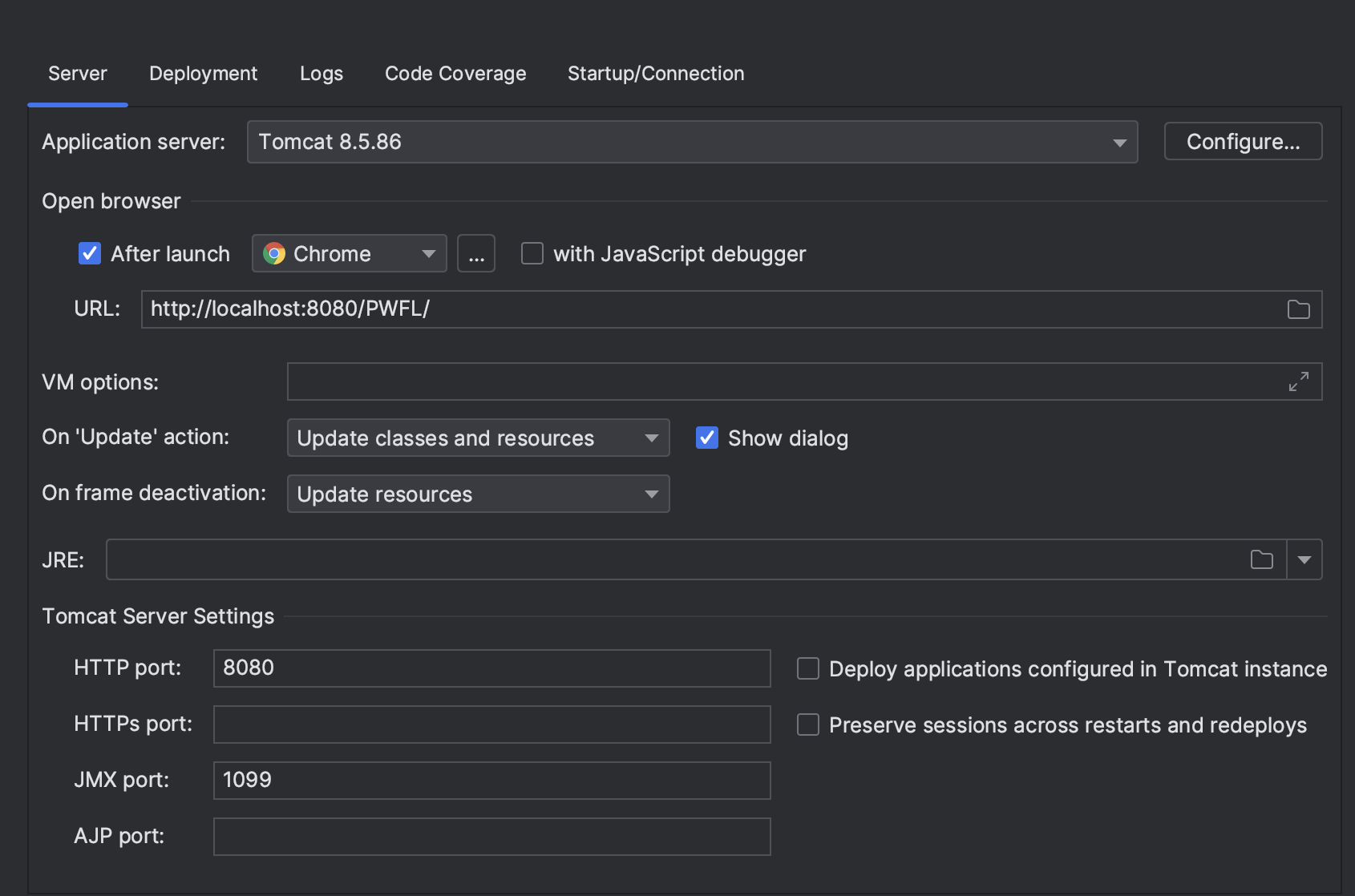
Wracamy do zakładki serwer i ustawiamy 'On Update action' na Update classes and resources. Serwer Tomcat domyślnie uruchamia się na localhost:8080, ponieważ jest to jego domyślny numer portu. Jeśli port 8080 jest już używany przez inny proces, Tomcat użyje następnego dostępnego numeru portu: 8081 lub 8082 itd. Ostateczna konfiguracja zakładki serwer wygląda nastpująco:
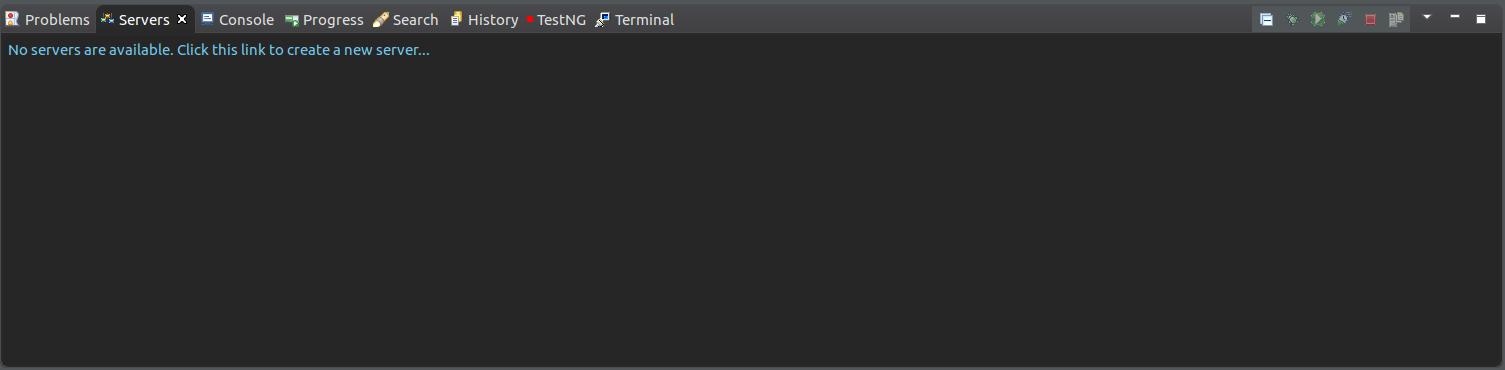
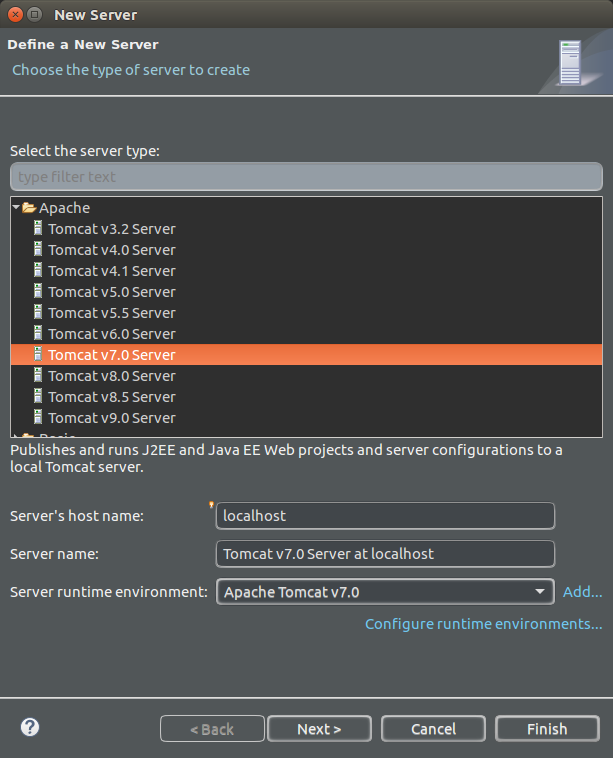
W przypadku braku uprawnień do uruchomienia serwera należy wpisać do terminala: chmod a+x ścieżka-do-tomcata/apache-tomcat-8.5.86/bin/catalina.sh Dodanie serwera do EclipseW zakładce "Servers" klikamy w link, aby utworzyć nowy serwer W nowym oknie wybieramy wersję serwera taką, jaką pobraliśmy ze strony. Resztę pól możemy zostawić tak jak jest. Klikamy Finish.
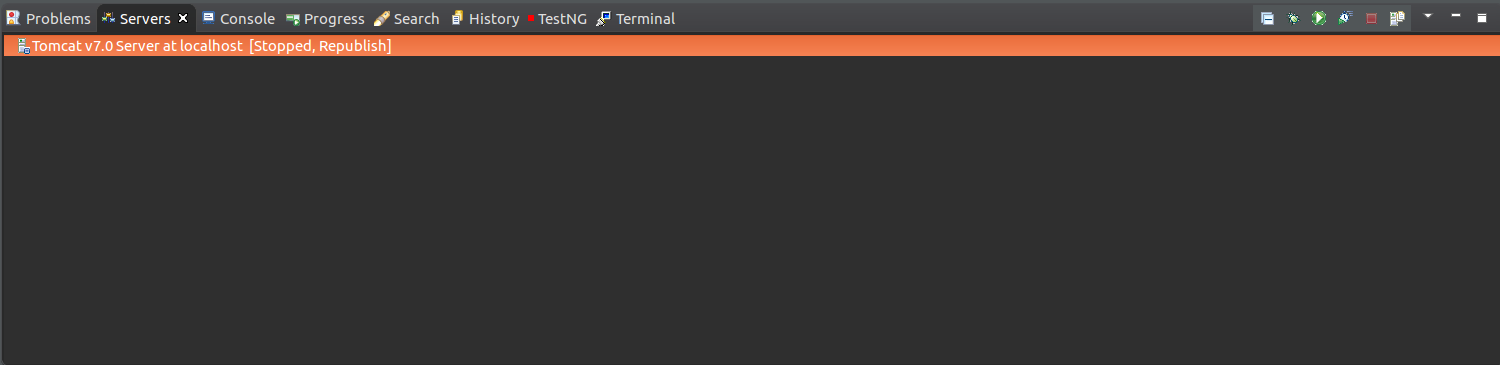
Konfiguracja serwera w EclipseKlikamy dwa razy na serwer w zakładce Servers.
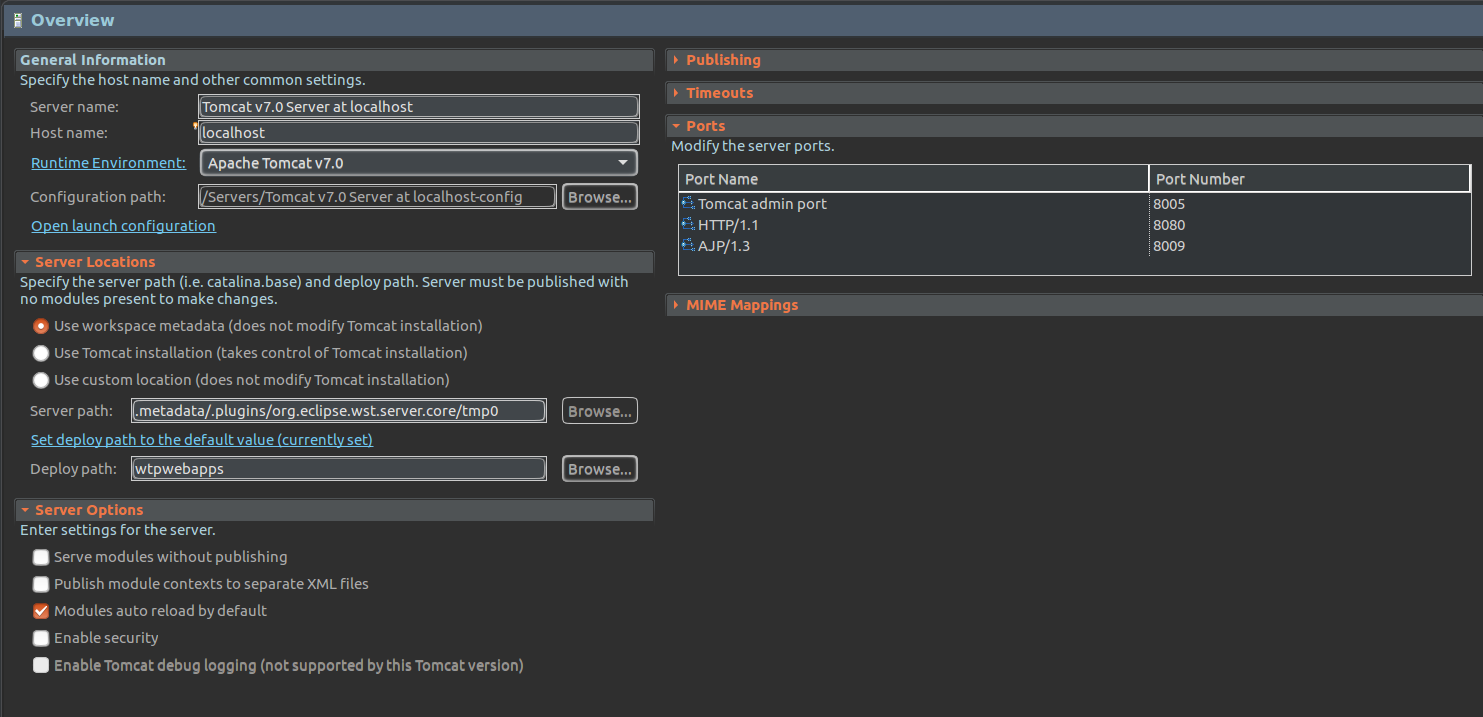
W ten sposób otwieramy okno konfiguracji serwera
Zmiana miejsca deployowania projektówW zakładce "Server locations" wybieramy opcję "Use custom location" i podajemy ścieżkę, gdzie zostaną umieszczone skompilowane pliki z naszego projektu. Zmiana czasów włączania/wyłączania serweraZdarza się, że serwer potrzebuje więcej czasu na rozpoczęcie swojego działania, dlatego warto zwiększyć wartość parametru "Start" do kilku minut. |
| English |
|---|
TomcatInstallationDownload the current stable version of Tomcat 8.5 server (as of 03.2023) from the site: http://tomcat.apache.org/ in .zip archive format. Unzip the server in the location where we want to keep our server. Adding a server to IntellijAdd a new Tomcat Servel Local configuration. In Application server, set the path to the Tomcat folder.
Go to Deployment tab. Click plus and select plusworkflow-web:war exploded.
At the bottom, you can change Application context from 'plusworkflow_web_war_exploded' to whatever you want (application context must be contained in the URL in the server tab, e.g. URL: http://localhost:8080/PWFL, application context: /PWFL).
Go back to the server tab and set 'On Update action' to Update classes and resources. The Tomcat server will start on localhost:8080 by default, as this is its default port number. If port 8080 is already used by another process, Tomcat will use the next available port number: 8081 or 8082, etc. The final configuration of the server tab looks as follows:
If you do not have permission to run the server, type into the terminal: chmod a+x path-to-tomcat/apache-tomcat-8.5.86/bin/catalina.sh Adding a server to EclipseIn the "Servers" tab, click on the link to create a new server In the new window we choose the version of the server as we downloaded from the site. Leave the rest of the fields as they are. Click Finish.
Configuring the server in EclipseDouble-click on the server in the Servers tab.
This opens a server configuration window
Changing the deployment location of projectsIn the "Server locations" tab, select "Use custom location" and specify the path where the compiled files from our project will be placed. Changing the server on/off timesSometimes the server needs more time to start its operation, so it is worth increasing the value of the "Start" parameter to several minutes. |